Installation
Playify provides seamless installation scripts to get you up and running as quickly as possible.
Windows (recommended)
Section titled “Windows (recommended)”-
Download the repository as a ZIP from the GitHub releases or clone it via git.
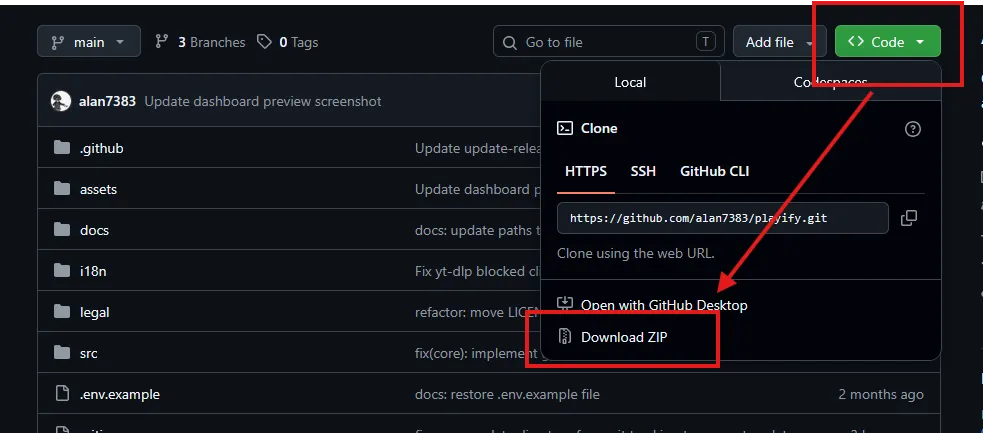
-
Extract the ZIP file anywhere on your computer (make sure it’s extracted, do not run from within the ZIP).
-
Double-click
start.bat. -
The Playify installer will automatically install Python, download FFmpeg, and prompt you for your Discord token and Spotify keys.
-
The TUI dashboard will launch automatically!
Playify natively supports Linux with an automated setup script.
- Clone the repository:
git clone https://github.com/alan7383/playify.git- Enter the directory:
cd playify- Run the bootstrapper:
bash start.sh- The script will set up your virtual environment, automatically download a local copy of FFmpeg, and launch the dashboard.
Docker
Section titled “Docker”If you prefer using Docker:
- Clone the repository:
git clone https://github.com/alan7383/playify.gitcd playifycp .env.example .env- Edit
.envand fill in your tokens. - Start the bot:
docker compose up -d --buildAdditional requirements & troubleshooting
Section titled “Additional requirements & troubleshooting”Playify automatically downloads FFmpeg during start.bat and start.sh execution. However, if you are doing a pure manual installation or run into issues:
FFmpeg (manual installation)
Section titled “FFmpeg (manual installation)”- Windows: download FFmpeg, extract it, and add the
binfolder to your system PATH. - Linux: install via package manager:
sudo apt install ffmpeg.