Inviting the bot
Once you have your bot running (or if you are setting up the bot application for the first time), you need to invite the bot to your Discord server! It does not join automatically.
Follow these steps to generate an invite link for your bot.
1. Go to the Developer portal
Section titled “1. Go to the Developer portal”Go to the Discord Developer portal and select your application. If you don’t have one yet, you must create one by clicking New application.
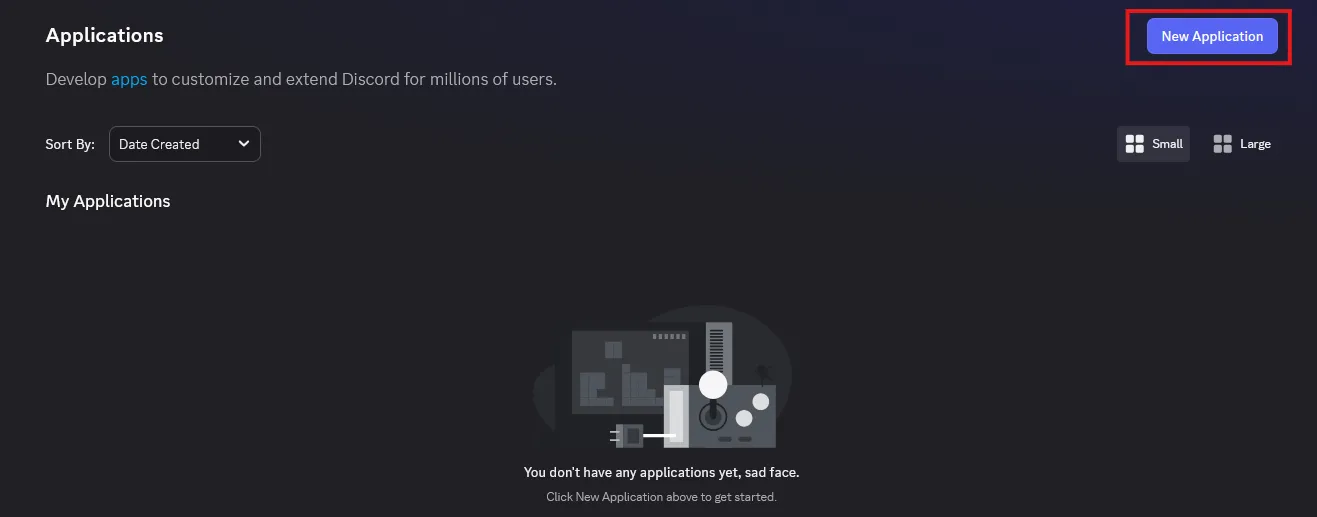
2. Open the URL generator
Section titled “2. Open the URL generator”In the sidebar on the left, click on OAuth2, and then select URL generator.
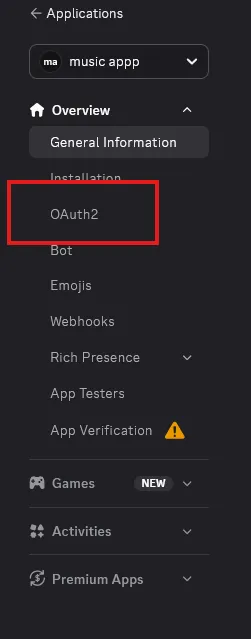
3. Select scopes and permissions
Section titled “3. Select scopes and permissions”To ensure Playify functions correctly and can register its slash commands, you must select the correct scopes and permissions.
Scopes
Section titled “Scopes”Check the following boxes:
botapplications.commands
Bot permissions
Section titled “Bot permissions”Once you check bot, a list of permissions will appear below. Check the following:
View channelsSend messagesEmbed linksRead message historyConnectSpeak
(Alternatively, if you trust your own bot and don’t want to deal with specific permissions, you can simply check Administrator.)
4. Generate and open the URL
Section titled “4. Generate and open the URL”At the bottom of the page, a generated URL will appear. Copy this URL and open it in a new tab in your web browser.
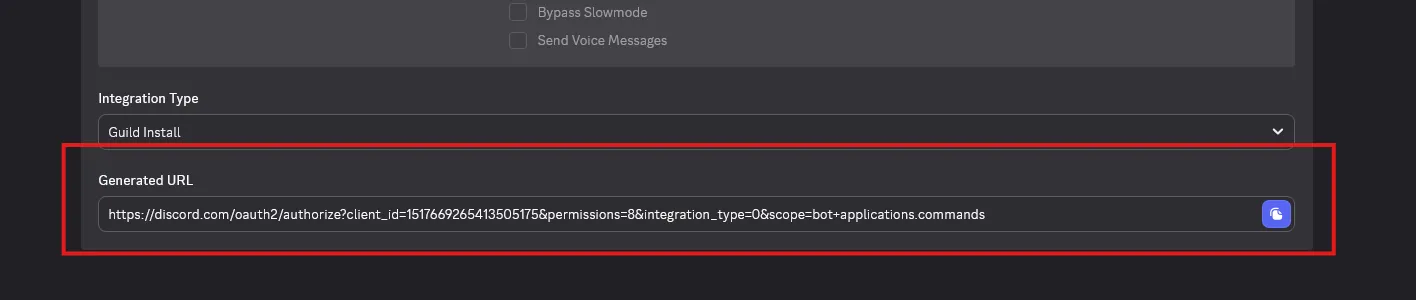
5. Invite to your server
Section titled “5. Invite to your server”Select the server you want to add Playify to, and confirm.
Once it’s in, join a voice channel and use /play to start listening!